
Summary: People with motor disabilities choose from a variety of assistive technologies that accommodate different user needs, such as a switch device.
A switch acts as a keyboard or mouse, allowing people with motor disabilities to operate and navigate through phones, tablets, smart home devices, and more. It can be operated by almost any body part that can produce consistent, voluntary movement, like small head movements or the touch of a finger.
User groups
- People with motor and/or cognitive disabilities that severely impact the ability use keyboard, touch, or other standard input devices
Types of switches
Single switch
A single switch is a large button or touch-sensitive pad, placed near a body part so that it can be clicked. The combination of two or more switches allows more efficient experiences.
Specific software (such as Android and Chromebook's Switch Access) is used to translate single-switch activity into computer commands.
Sip-and-puff switch
Users can speak numbers to select interactive elements. These numbers can be persistent and some find this is a more consistent and efficient way to tap.
Users can also choose to not show display number labels on elements that have text.

Did you know
Stephen Hawking, an English theoretical physicist, was diagnosed in 1963 with Amyotrophic Lateral Sclerosis (ALS), a motor neuron disease. He used a switch to control software on a computer that enabled him to talk.
Software for switches
Specific software is needed to translate single-switch activity into computer commands.
For example, Switch Access is an assistive technology software that supports switches and provides input assistance to enter text, choose menus, or move the pointer of a Chromebook or Android device.
Other operating systems like MacOS also support switch control. You don’t need a specialized switch device to try out switch access software – you can use existing hardware keys on your device like keyboard keys or the volume keys on your phone.
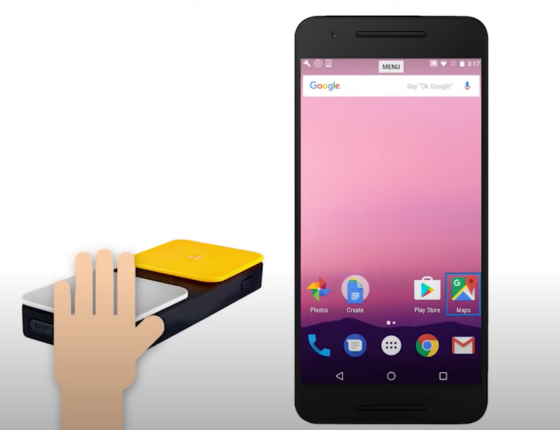
You can use a switch device to operate an Android device without touching the screen with Switch Access.
Activate Switch Access on Android to learn the basics
For iOS, the equivalent accessibility feature is called Switch Control but its feature set and UI doesn't match this guide 1-to-1.
How to set up Switch Access on an Android device:
- Open Android Settings
- Locate Accessibility in the list
- Select Switch Access under the Interaction Controls section
- Turn on Switch Access and follow the instructions on the setup guide
If you don't have a switch device available, you can pair an external USB or Bluetooth keyboard or assign the volume keys of the device as switches. More instructions for testing with Switch Access are available in the Android Developer Guide to test the accessibility of user interfaces.
Dig deeper into switch controls
You can learn more about switch controls across a number of platforms by visiting the Accessibility Testing site (go/accessibility-testing)