
Summary: Voice Access is a voice command interaction model that allows users to use voice commands to operate a device.
Overview
The mental model of Voice Access is simple: it replaces screen tapping with a voice equivalent. Some users describe it as an “invisible hand.”
Unlike natural language interfaces like Google Assistant, Voice Access is a voice command interaction model that allows users to tap the words and icons they see onscreen, using an Android device hands-free. Users can replace touch altogether and use voice commands to trigger gestures, select specific screen locations, type, and edit text. They can also open and use global commands similar to the Google Assistant to control the system UI functions, such as turning down volume, opening apps, locking the screen, or taking a screenshot.
Voice recognition doesn't always work perfectly, so users may or other assistive technologies as a fallback.
P4A's best practices for voice access
Here's a deeper look into how Voice Access works to help you consider how to design:
Label modes
A UI contains many repeated elements and Voice Access may ask a user to help clarify the intention behind a tap. Voice Access assigns numbers to similar elements or repeated text on a screen to identify which element a user wants to select.
Referring to visual elements by name is not always easy. It asks that users know the name of what they want to select. This is hard especially for icons and elements without text. Voice Access features different modes that can help remedy this.
By default, users speak names of icons and words to interact with them without label overlays.
Name labels
When users don't know the name of an icon they can use the command show labels to learn the name of icons. These name labels disappear after the user performs an action.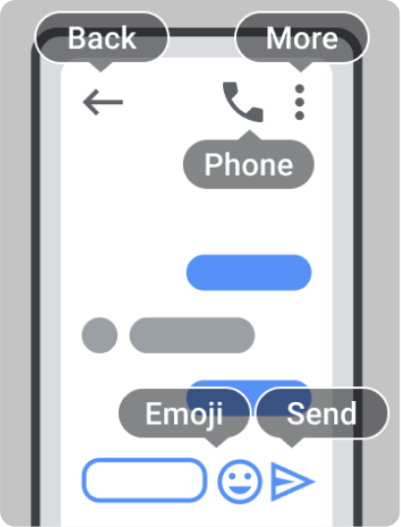
Number labels
Users can speak numbers to select interactive elements. These numbers can be persistent and some find this is a more consistent and efficient way to tap. Users can also choose to not show display number labels on elements that have text.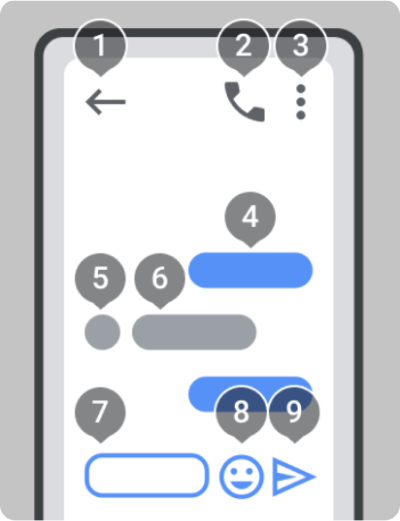

Did you know?
Most people who use Voice Access alternate between modes to complete navigational flows.
Using labels to perform gestures
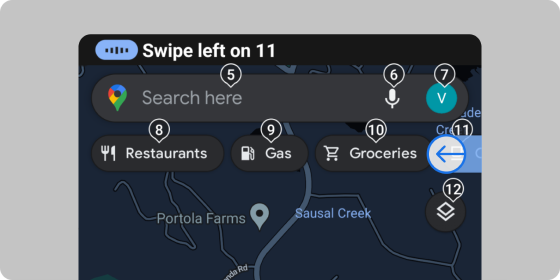
User interfaces typically require use of gestures. People can use labels as anchoring points to perform gestures and long press on UI elements.
For example, a command like "swipe left on 11" will perform the specified gesture (swipe) on the specified element (element 11).
Grid selection by speaking
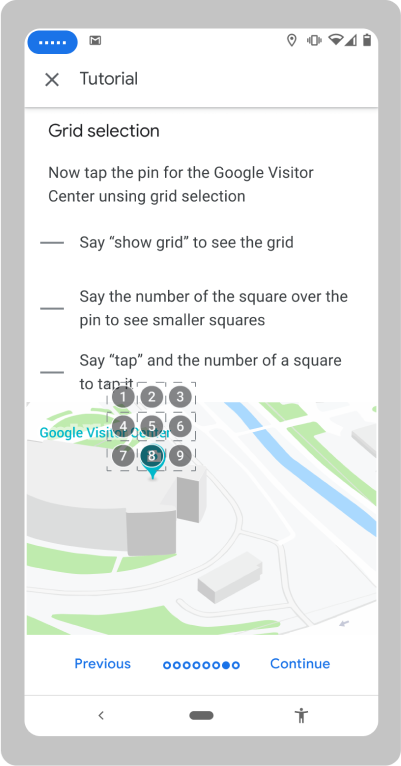
The grid can be used to tap a specific point on the screen by speaking the number assigned to a square. The numbered square can divide again into smaller squares if needed to specify a smaller element. Users can also perform a gesture at that point.
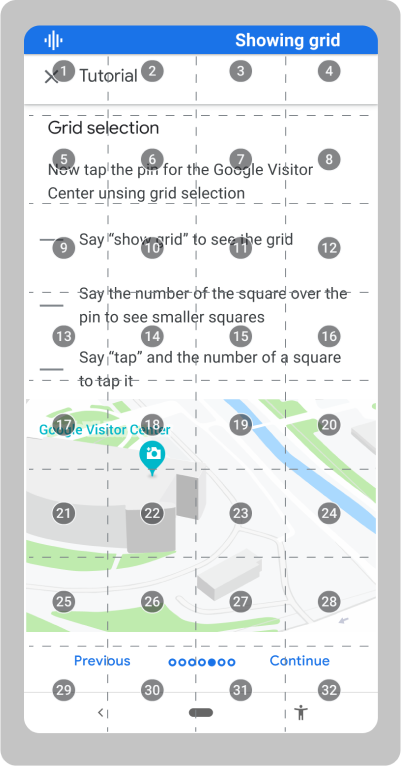 Tutorial screens instruct users how to use a grid of squares with numbers
overlaying a map that allows users to select a pin on a map.
Tutorial screens instruct users how to use a grid of squares with numbers
overlaying a map that allows users to select a pin on a map.
Text-editing commands
Users can dictate, spell, edit, and format text by voice. A common challenge is making mistakes or forgetting the available commands.
Users can speak commands while typing and it's common for some words or speech in the environment to not be recognized and get typed in the textfield.
The command start or stop editing lets users explicitly signal the exit from a textfield to avoid commands from being typed.
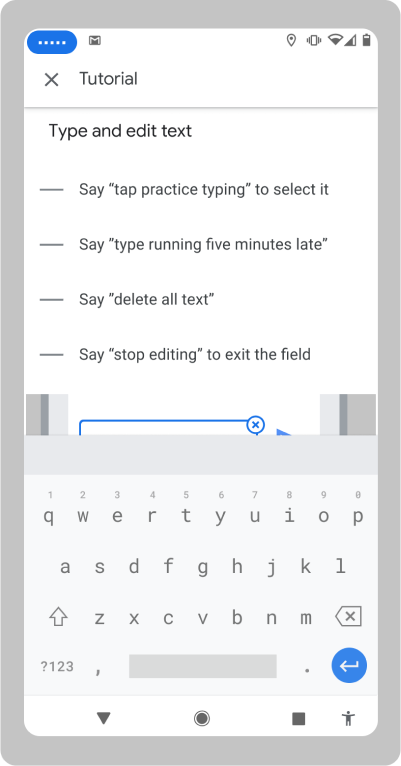 Tutorial screen listing common text editing commands.
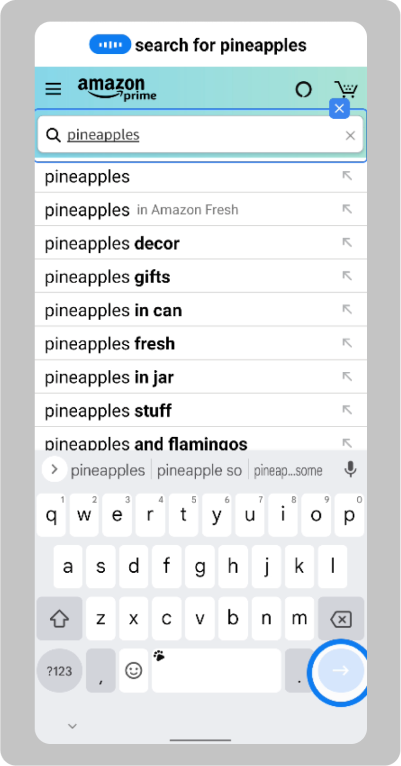 Open search pattern sequences can break. Verifying that macros work in your
app is an important step.
Open search pattern sequences can break. Verifying that macros work in your
app is an important step.
Macros to automate
Voice Access features commands that automate some user flows. One example is the search macro.
Users can say search followed by what they are searching for. Voice Access will tap on the search bar on the screen and type the query and tap enter. Macros are app and website agnostic and will save users time.
Note: Over time more macros will be added to make other tasks more efficient.