
Summary: A switch is based on the same principles as keyboard navigation
Overview
A switch is based on the same principles as keyboard navigation, but people may only have a small number of inputs (sometimes even just one) key configured to move forward and one to activate the element that is in focus. Switch users can configure hardware switches to navigate in different ways, like point or row column scanning.
The following are some configuration options that can help you consider how to design:
P4A's best practices for switch access
The following are some configuration options that can help you consider how to design:
Auto-scan
When users configure just one switch, Switch Access uses Auto-scan.When the switch is pressed, scanning moves a highlight through interactive elements on the screen automatically.When the switch is pressed again, the highlighted item gets selected.
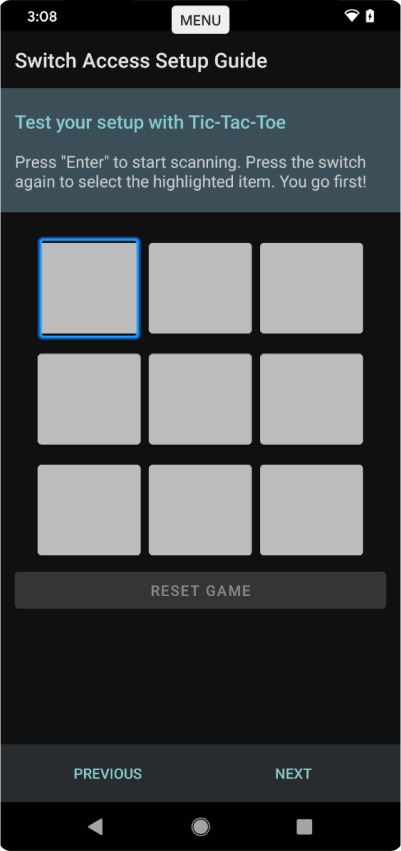
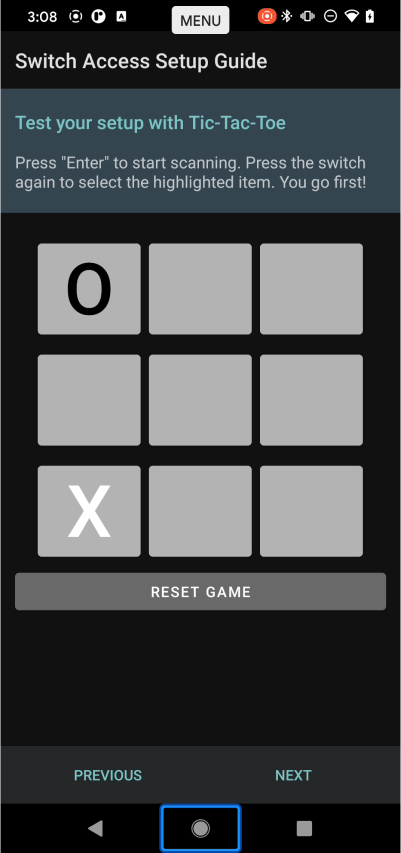 A tic-tac-toe game is used as an interactive way for users to test their setup.
Step scanning
With two switches, a common configuration is to assign one switch to a next action and one switch to a select action. When the "next" switch is pressed, the highlight will move to the next item. When the "select" switch is pressed, the highlighted item will be selected. This strategy doesn't rely on timing and the user controls the scanning progress manually.
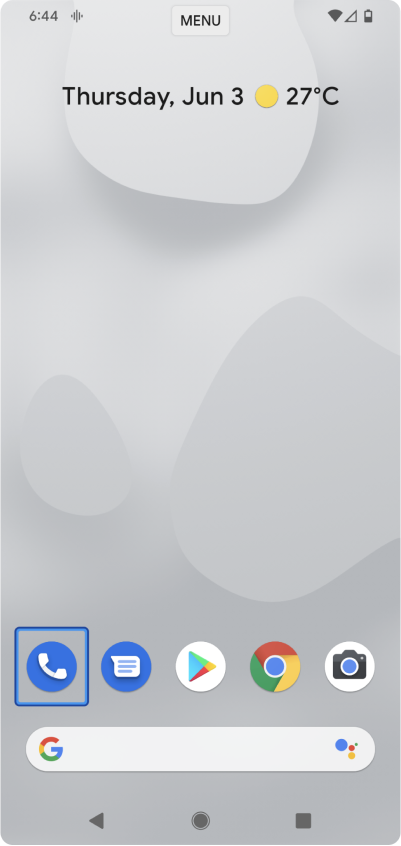
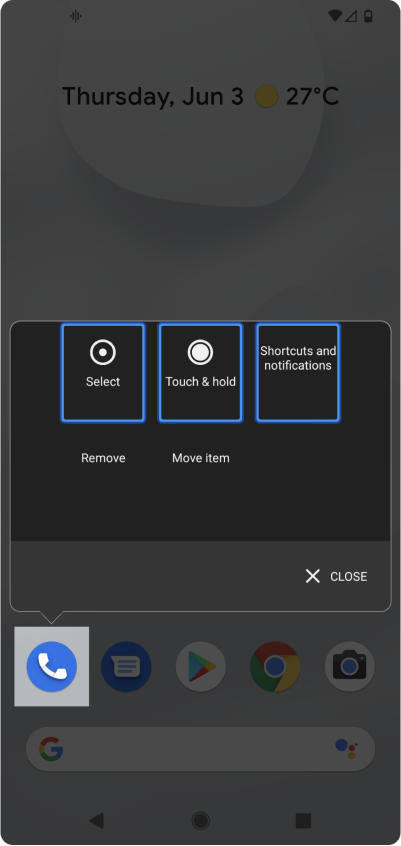 Tap and hold, remove, move items, and notifications are examples of secondary actions available to users by long press or press and hold of an app icon on the home screen.
Scanning configurations
Linear scanning or step scanning highlight moves through one item at a time, moving in a linear fashion from left to right, top to bottom. Users can configure additional switches for additional actions such as moving to the previous highlighted item. Without this, if a user misses a timed affordance, they will have to wait and navigate the entire screen to attempt to select the item again.
This is an example of how costly errors and efficiency limitations can be with scanning interaction methods in rich media applications like social media feeds or photo gallery grids. However, different configurations can make scanning more efficient.
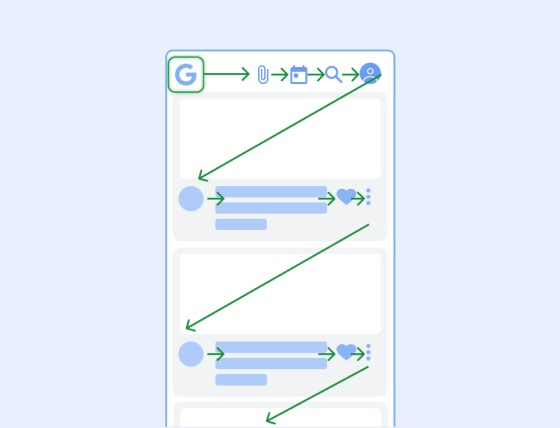 Screens with rich cards like a news feed and other lists and grids have many steps, without a mechanism to navigate backwards, navigating past a target is very costly.
Row-column scanning
Groups of items in rows will be highlighted, and once a row is selected, the individual items in that row will be scanned.
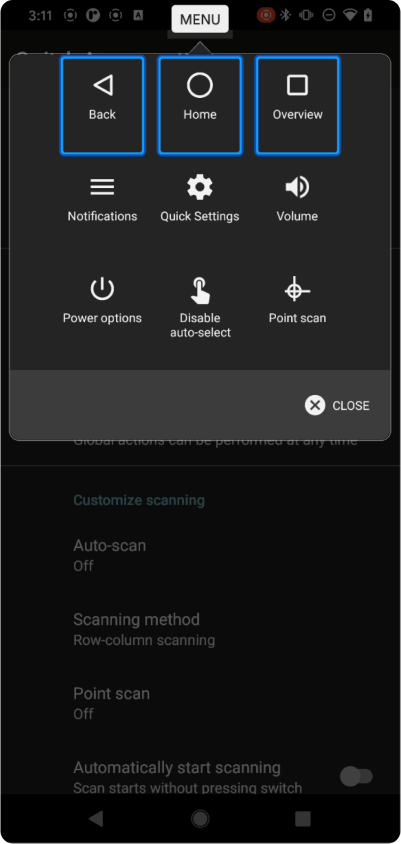 Navigating one row at a time is more efficient. That is true in the Switch Access menu itself.
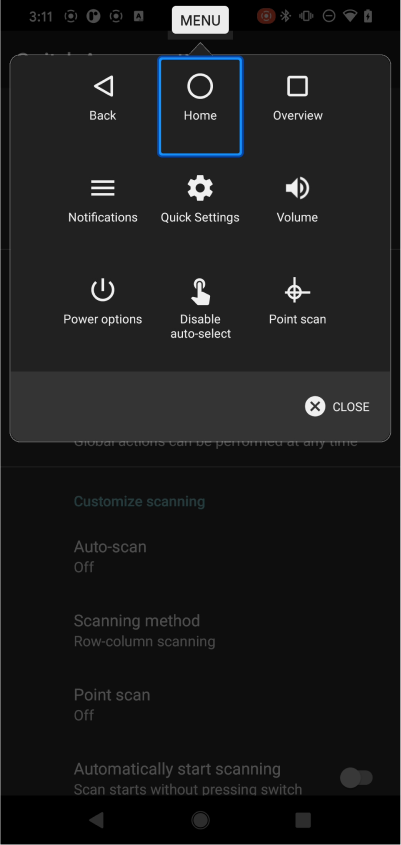 Using row-column scanning to select items.
Point scanning
Instead of scanning items on the screen, users control horizontal and vertical lines to select a specific point on the screen.
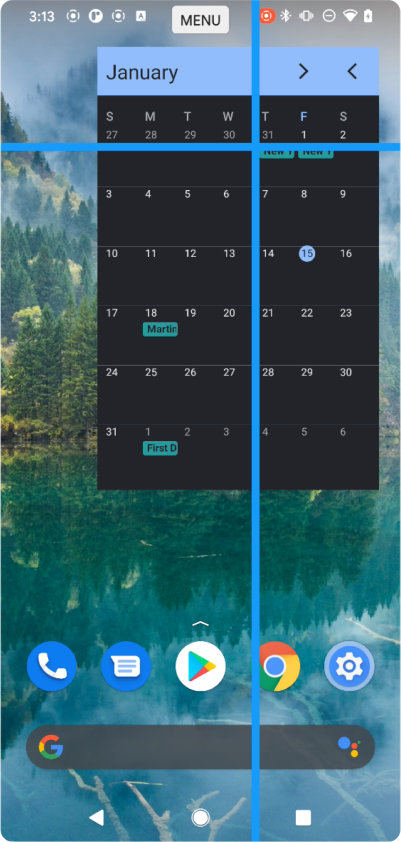 Widgets with dense layouts commonly have small touch targets.
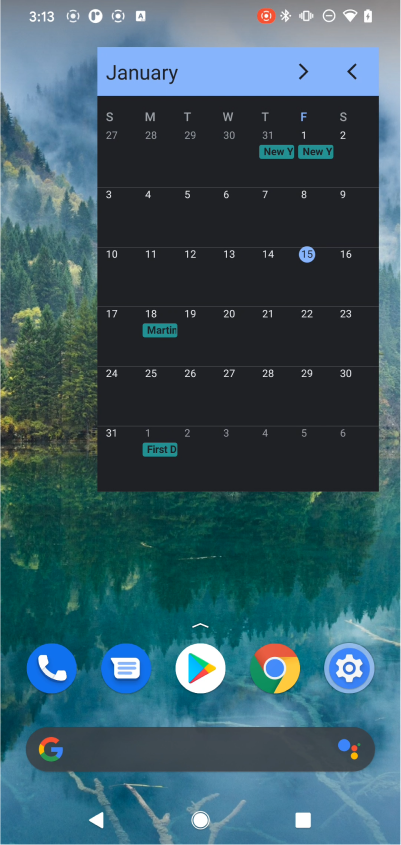 Using point scanning to select an item on the screen.
Global actions
Users can assign a switch to perform global actions at any time, including:
- Opening the notifications drawer/panel
- Opening Android's quick settings
- Opening the app overview
- Navigating back
- Navigating to the homepage
For many users, setting up dedicated hardware for just one action isn't feasible or affordable. Most users rely on the Switch Access Menu which surfaces global functions like volume in nested menus. However, navigating to these controls is generally slow.
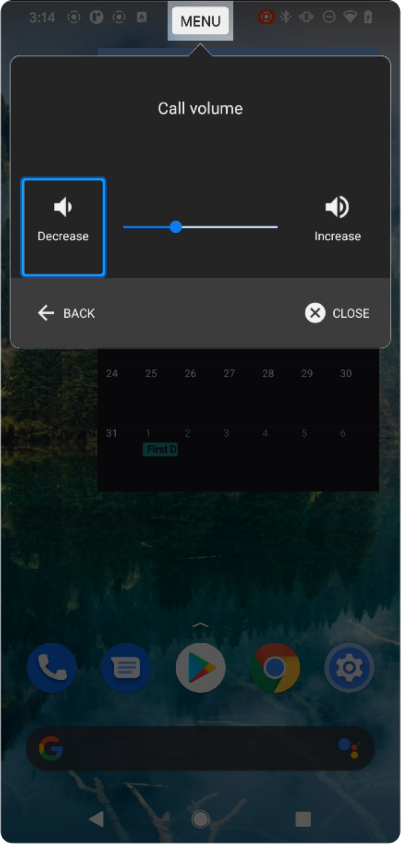 Widgets with dense layouts commonly have small touch targets.
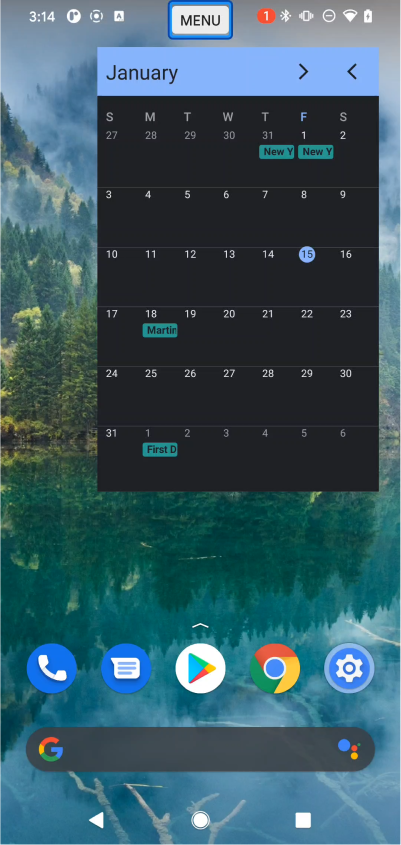 Using point scanning to select an item on the screen.
Other common actions
Emulating pointing and tapping isn't enough to substitute touch interactions with a screen. Actions like scrolling, tap and hold, double tap, and custom gestures can be configured for switch activation. However, because extra switches are not a common setup, assistive technology like Switch Access can place focus on scrollable views. When in focus a scrollable element can be activated to scroll step-by-step.
Actions on highlighted items
In order to touch and hold a UI element, Switch Access surfaces a menu upon selection when the auto-select feature is disabled.
This menu will also provide additional actions that developers define to interact with UI elements. Some common ones are support for drag and drop, delete, and star.
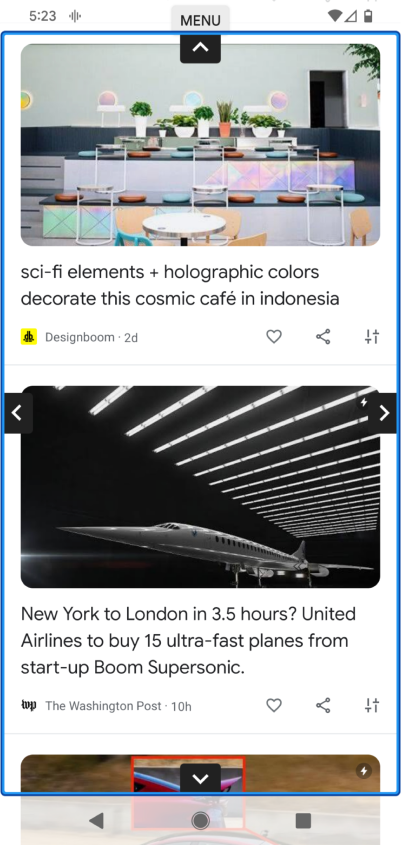 Scrolling newsfeeds precisely is a difficult task using assistive technology.
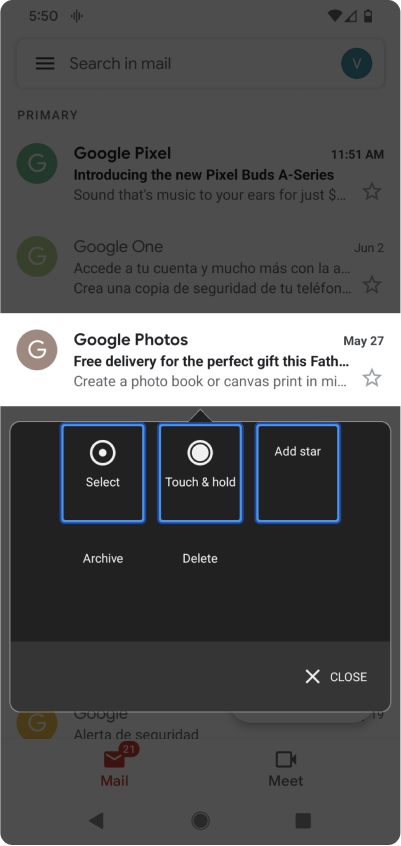 Developers have control over what custom actions are made available to users. In this case, star, archive, and delete.